

1.Find Color
Find specified multiple color points in device screenshot, supports relative and absolute coordinate modes, configurable similarity threshold and finding all matching locations. 💡 Quick Color Picker You can use the quick color picker in the console developer tools to quickly get screen coordinates and color value arrays.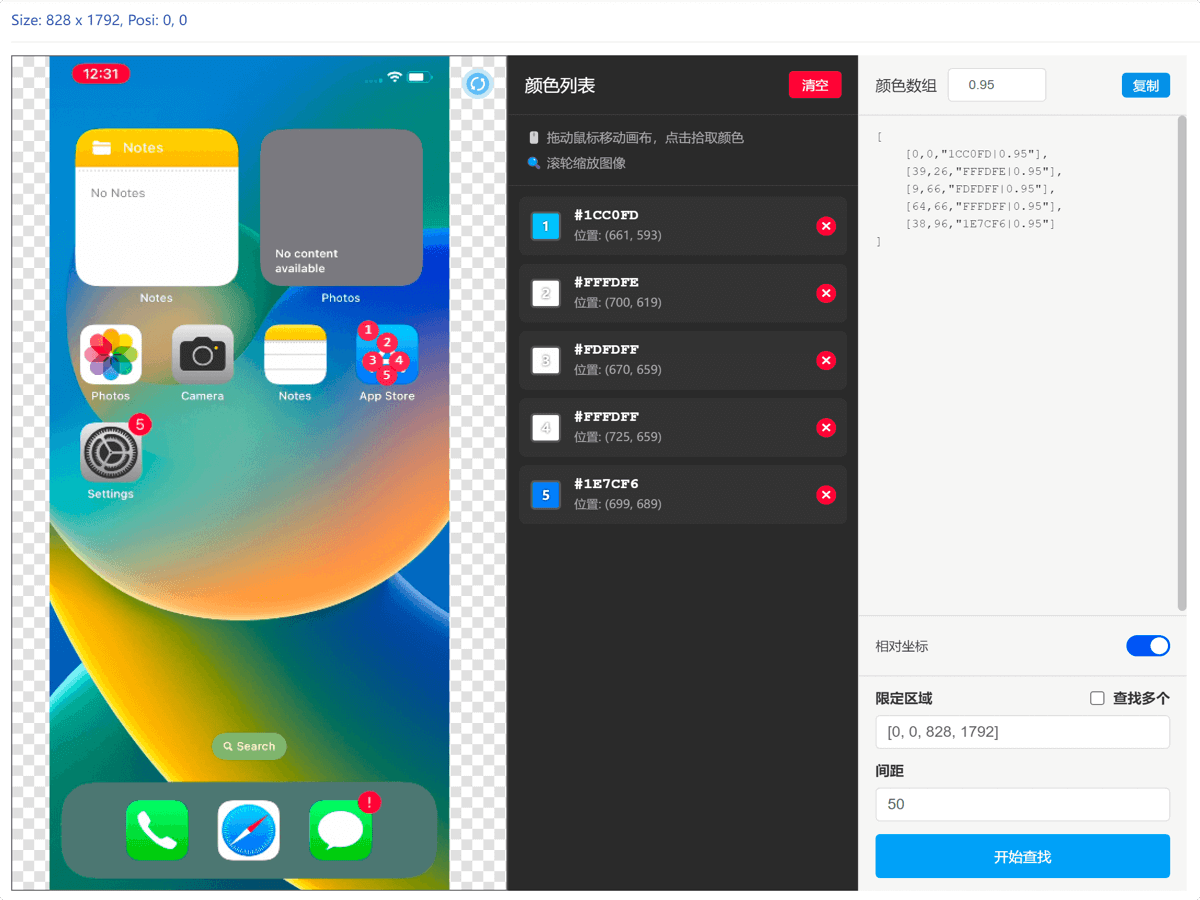
Endpoint Description
Endpoint Type
Parameters
Response Payload
Single Match (multiple = false or absolute coordinate mode):Feature Description
Coordinate Modes
findColor supports two coordinate modes:
1. Absolute Coordinate Mode
In absolute coordinate mode, all points use screen absolute coordinates:
- No need for
rectandmultipleparameters - If all color points match, returns the first point’s coordinates
[0, 0], relative coordinate mode is used:
- The first point
[0, 0]serves as the reference point, searched within therectarea - Other points’ coordinates are relative to the first point
- Can provide
rectparameter to define search area - Supports
multipleparameter to find all matches
Basic Usage
Example 1: Absolute Coordinate Mode
Example 2: Relative Coordinate Mode - Find All Matches
2.Find Image
Use OpenCV template matching technology to find specified image template in device screenshot, supports similarity control and multiple results finding.Endpoint Description
Endpoint Type
Parameters
Response Payload
Single Match (multiple = false):Feature Description
Search Direction
Similarity Threshold
threshold controls matching precision:
1.0- Exactly the same (hard to match)0.95- Almost identical0.9- Highly similar (recommended, default)0.85- Similar0.8- Basically similar< 0.8- Possible false match
Multiple Results Finding
Usemultiple = true to find all matching locations:
- Automatically sorted by similarity in descending order
- Use
distanceparameter to filter results too close together - Max 88 results returned
3.Find Images (Multi)
Search multiple template images in a single screenshot using OpenCV template matching. Compared withfindImage, this interface accepts a sprites array and returns the match result with the corresponding template index.
Endpoint Description
Endpoint Type
Parameters
Response Payload
Best match (findAll = false):- Returns
nullif nothing matches. - Returns an object when matched:
- Returns an empty array
[]if nothing matches. - Returns an array of results when matched:
Feature Description
Search Strategy (findAll = false)
- When
direction = 0(default): picks the global best match across allsprites. - When
direction != 0: tries templates inspritesorder, returns the first template that matches according to the direction preference.
Search Direction
Similarity Threshold
threshold controls matching precision:
1.0- Exactly the same (hard to match)0.95- Almost identical0.9- Highly similar (recommended, default)0.85- Similar0.8- Basically similar< 0.8- Possible false match
Result De-duplication (distance)
WhenfindAll = true, results that are too close (both X and Y within distance pixels) will be filtered to reduce duplicates, and only the higher-confidence point is kept.
💡 Tip
To improve accuracy and speed, keep template images small and distinctive (avoid large solid-color areas or repetitive patterns). It’s recommended to set rect to limit the search area whenever possible.
4.Get Color
Get the hexadecimal color value of a specific coordinate from the latest device screenshot.Endpoint Description
Endpoint Type
Parameters
Return Value
Returns a string inRRGGBB format (uppercase), representing the RGB color of the requested pixel. Example: "2A9DF4".
Basic Usage
5.Compare Color
Check whether the pixel at a specific coordinate in the latest screenshot matches the expected color, with optional channel deviation.Endpoint Description
Endpoint Type
Parameters
Return Value
Returnstrue if the pixel color falls within the tolerance of any segment; otherwise false
6.Match Color Point
Check if all specified color points exist in the specified region of device screenshot, supports similarity threshold settings. Returnstrue if all colors are found, otherwise throws an error indicating which colors were not found.
Endpoint Description
Endpoint Type
Parameters
Response Payload
On Success:Feature Description
Color Format
Each element in the color array has the format:"color|threshold"
- Color: 6-digit hexadecimal color value, e.g.,
"FFFFFF" - Threshold: Similarity threshold, range 0-1, similarity =
round((1 - threshold) * 255), same for all three channels
Search Area
Therect parameter defines the search area:
- Format:
[x1, y1, x2, y2]
Use Cases
Case 1: Verify UI State
Check if system modal exists:- Unlike
findMultiColor,matchColorPointdoes not return specific coordinates, only verifies if colors exist - Suitable for UI state verification, conditional checks, and similar scenarios
7.Find Color(DM Tools Version)
Find specified colors and their offset colors in device screenshot, supports multi-point color recognition and tolerance matching.Endpoint Description
Endpoint Type
Parameters
Response Payload
Single Match (multiple = false):Basic Usage
Feature Description
Color Format
Colors use hexadecimal format:888888- Gray
Offset Color Format
Offset colors for multi-point color matching, format:"x|y|color,x|y|color,..."
Search Direction
Color Tolerance
threshold parameter controls color matching accuracy:
1.0- Perfect match, no deviation allowed0.9- Allow about 10% color deviation (recommended)0.8- Allow about 20% color deviation0.7- Allow about 30% color deviation
8.OCR Recognition
Use device-side GPU acceleration technology to recognize text content in specified screen area, supports multiple language recognition.💡 TipSystem automatically recognizes phone language, no need to manually specify language type.Why not integrate third-party OCR? See OCR Guide for details.
Endpoint Description
Endpoint Type
Parameters
Response Payload
Returns an array of text blocks, each text block contains:Basic Usage
Feature Description
Recognition Area
rect parameter defines recognition area, format is [x1, y1, x2, y2]:
x1, y1- Top-left corner coordinates of areax2, y2- Bottom-right corner coordinates of area
- Area should contain complete text content
- Avoid including too much background and interference elements
- Smaller area = faster recognition, less memory usage
- Ensure area is within screen bounds
- Avoid recognizing too large area (recommend single recognition area not exceeding 1/2 of screen)
Language Support
System automatically detects text language, including but not limited to 18+ major languagesUse Cases
💡 Suitable ScenariosBuilt-in OCR is suitable for recognizing:
- ✅ UI interface button text, titles, prompts
- ✅ Short message content, notification text
- ✅ In-game text prompts, number information
- ✅ Form fields, input box content
- ❌ Full-page document scanning
- ❌ Long article recognition
- ❌ PDF text extraction
- ❌ Large-area continuous text recognition
9.Get Screenshot
Get real-time screenshot of specified device, supports various image formats and quality settings.Endpoint Description
Endpoint Type
Parameters
Response Payload
Returns binary image data:Basic Usage
10.Crop Screen Shot
Crop a specified area from the device screenshot and return the cropped image. Important Note This method only returns BMP image format, other formats are not supported.Endpoint Description
Endpoint Type
Parameters
Response Payload
Returns cropped image binary data (BMP format):Basic Usage
Notes
- Format Limitation: This method always returns BMP format, other formats cannot be specified
- Coordinate Range: Coordinates and dimensions in
rectparameter must not exceed screen bounds - Parameter Format:
rectmust be an array of 4 numbers:[x1, y1, x2, y2], where (x1, y1) is the top-left coordinate and (x2, y2) is the bottom-right coordinate
11.Screen Image Push
Push specified screen area image directly to custom API service for processing, suitable for various image recognition scenarios.Application Scenarios
This interface is particularly suitable for the following scenarios:- 🔤 OCR Text Recognition - Integrate third-party OCR services (such as PaddleOCR, Tesseract, etc.)
- 🎯 Captcha Recognition - Use specialized captcha recognition services
- 🖼️ Image Classification - Identify image content, object detection
- 🤖 AI Recognition - Integrate any custom image AI model
Difference from getScreenShot
Comparison
Endpoint Description
Endpoint Type
Parameters
Request Format
iClick will send POST request to your API. To save unnecessary resources, after the streaming end successfully pushes, it will not wait for the result and return it to the caller. screenPush will always return true, and you need to implement your own business callback logic. Request Headers:args parameter is provided, all fields will be passed as additional form fields: